
System Reports are found in the ‘Reports’ area of the Admin Portal.
System Reports are created by the tech team at Certainty Software and are common to all instances of Certainty. As System Reports are common to all instances of Certainty but the checklists used vary considerably across the user base, these are limited to the kind of data that are common across any kind of checklist.
System Reports can be emailed to subscribing recipients (defined by you) on a regular and scheduled basis.
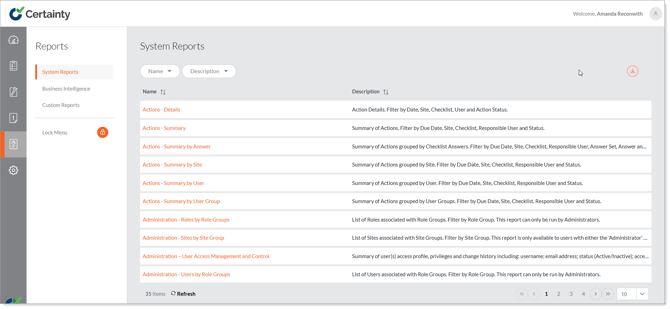
To run a System Report:
-
Click on the title (Name) of the report you want to run.
-
This will bring up the report filter which will allow you to define the parameters (e.g. date range, sites or site groups, etc.). Choose the report parameters you want.
-
Click ‘View Report’.
To save a System Report:
-
You have the option of saving your parameters with the “Save As” feature located at the bottom of the reports pop-up window.
- Naming and saving the report will allow you to bring up the report directly with all the same parameters from the original report from the Saved Reports section.
Features of a System Report
Once you have defined your report parameters and clicked ‘View Report’, your System Report will appear, and you will notice a number of report features and attributes that will allow you to further refine the report you have run.
These features are:
|
Show / Hide Parameters |
Show / Hide Parameters shows or hides the report parameters filter. |
|
Page scrolling |
If your report is more than one page, page scrolling allows you to easily jump to a page of your choice, the next or previous page or the first or last page. |
|
Keyword search |
Keyword search enables you to find particular keywords in your report. |
|
Save
|
Save allows you to save (export) the report you have run in numerous file formats including: XML, CSV, PDF, MHTML, Excel, TIFF and Word. |
|
Refresh
|
Refresh updates the data in your report in the event the data in your instance of Certainty has changed since you ran the report or if you changed the report parameters. |
|
Zoom |
Allows you to choose different zoom options, like Zoom to page width, Zoom to whole page, 100 %, 150 %, etc. |
|
Hyperlinks
|
Links to another record in Certainty (e.g. completed checklist, overdue action) referred to in your System Report. Click the hyperlink to open that record. |
Notes
-
You will need to allow ‘pop-ups’ in your browser to run reports.