
Creating an Action form with custom fields (Action Checklist)
The standard ‘Actions’ form in Certainty covers a lot of information but you can add fields to it by creating an ‘Action Checklist’ (a custom action form) in ‘Manage Checklists - Checklists’. This article explains how this works and will show you how to:
- Create a custom action form (action checklist).
- Link the action checklist to an action type.
- Add the action type to an action workflow step if workflows apply.
To add an action checklist:
- Navigate to ‘Manage Checklists – Checklists’.
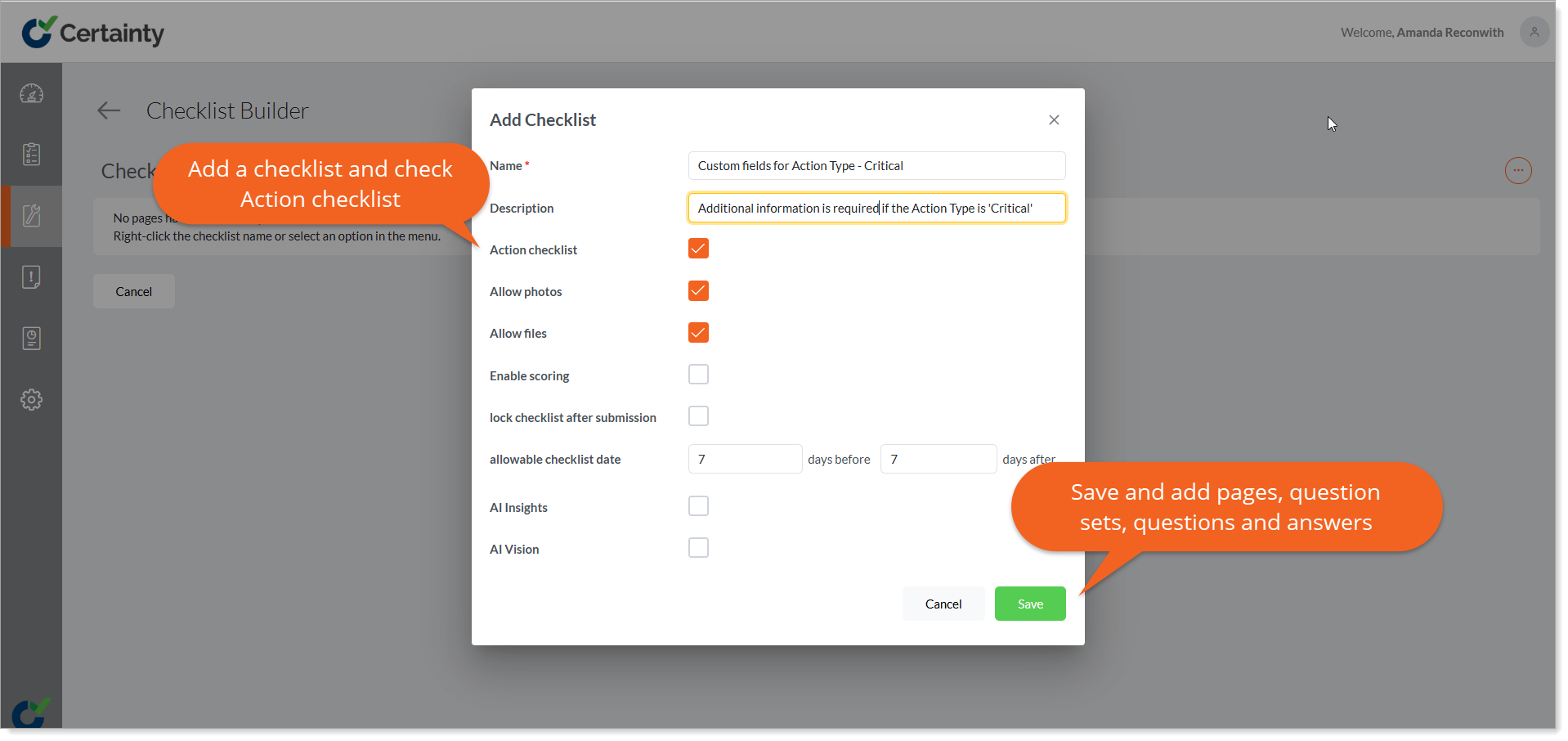
- Click the green ‘Add’ button to open the ‘Add Checklist’ form.
- Select the ‘Action checklist’ checkbox.
- The ‘Add Checklist’ form will change so only some fields are available. This is because action checklists inherit user permissions and site scope from the checklist the Mobile App user is adding the action to. This is also the reason you cannot change a regular checklist to an action checklist once it has been saved.
- Fill in the details.
- Click ‘Save’.
- Adding checklist components (Pages, Question Sets, Questions etc.) to your action checklist works the same as regular checklists but you will now create a checklist (form) where the questions and answers become additional custom fields in the Mobile App ‘Action’ form.
- When you are done building your checklist/form click ‘Save’.
- Click "Publish".
Next you need to associate the action checklist with an action type. It is this association that will trigger the action checklist to appear if a Mobile App user selects that specific action type when adding an action.
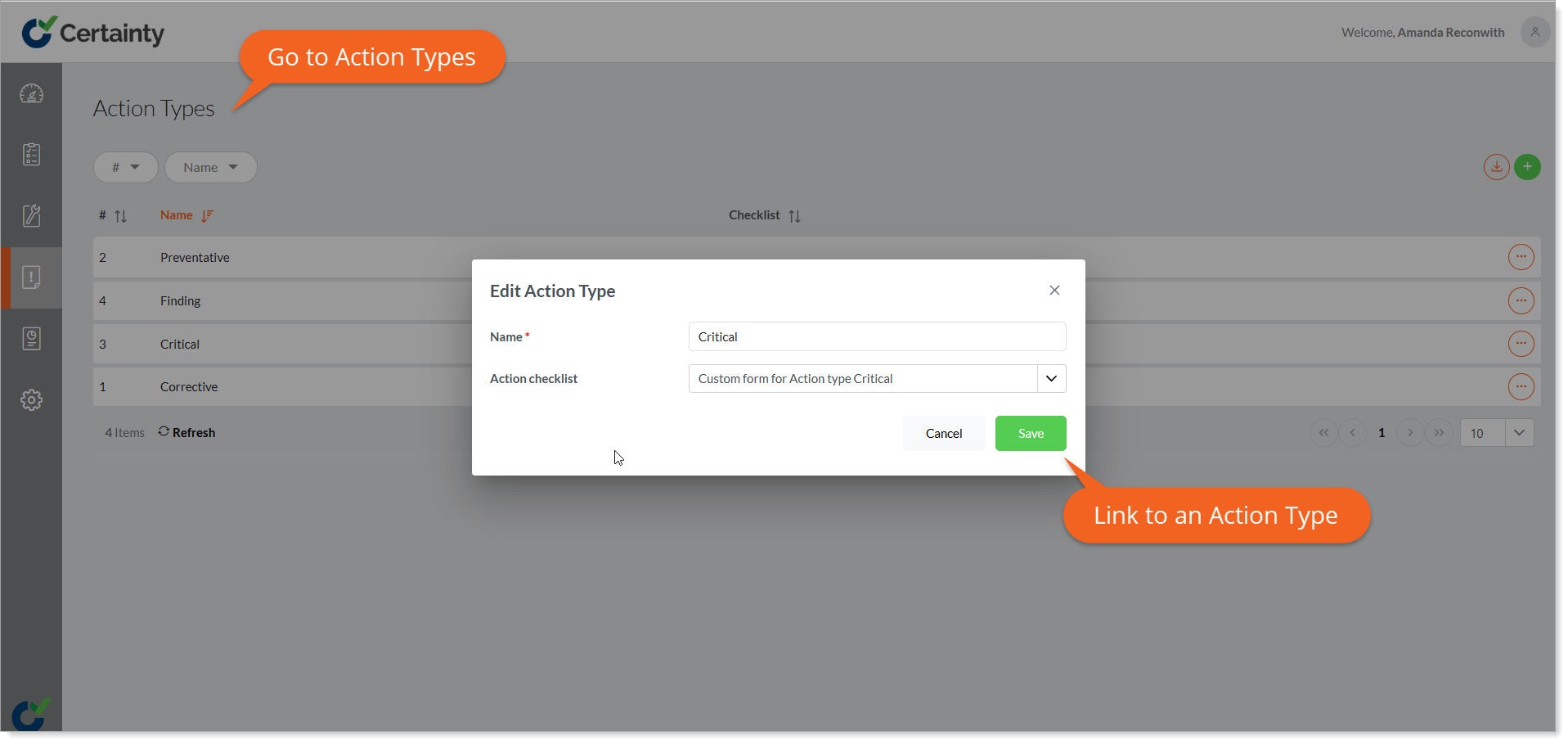
To link an action checklist to an action type:
- Go to ‘Manage Actions - Action Types’.
- Add a new action type or edit an existing one and link it to an action checklist. An action type can only be linked to one action checklist at a time.
- Click ‘Save’.
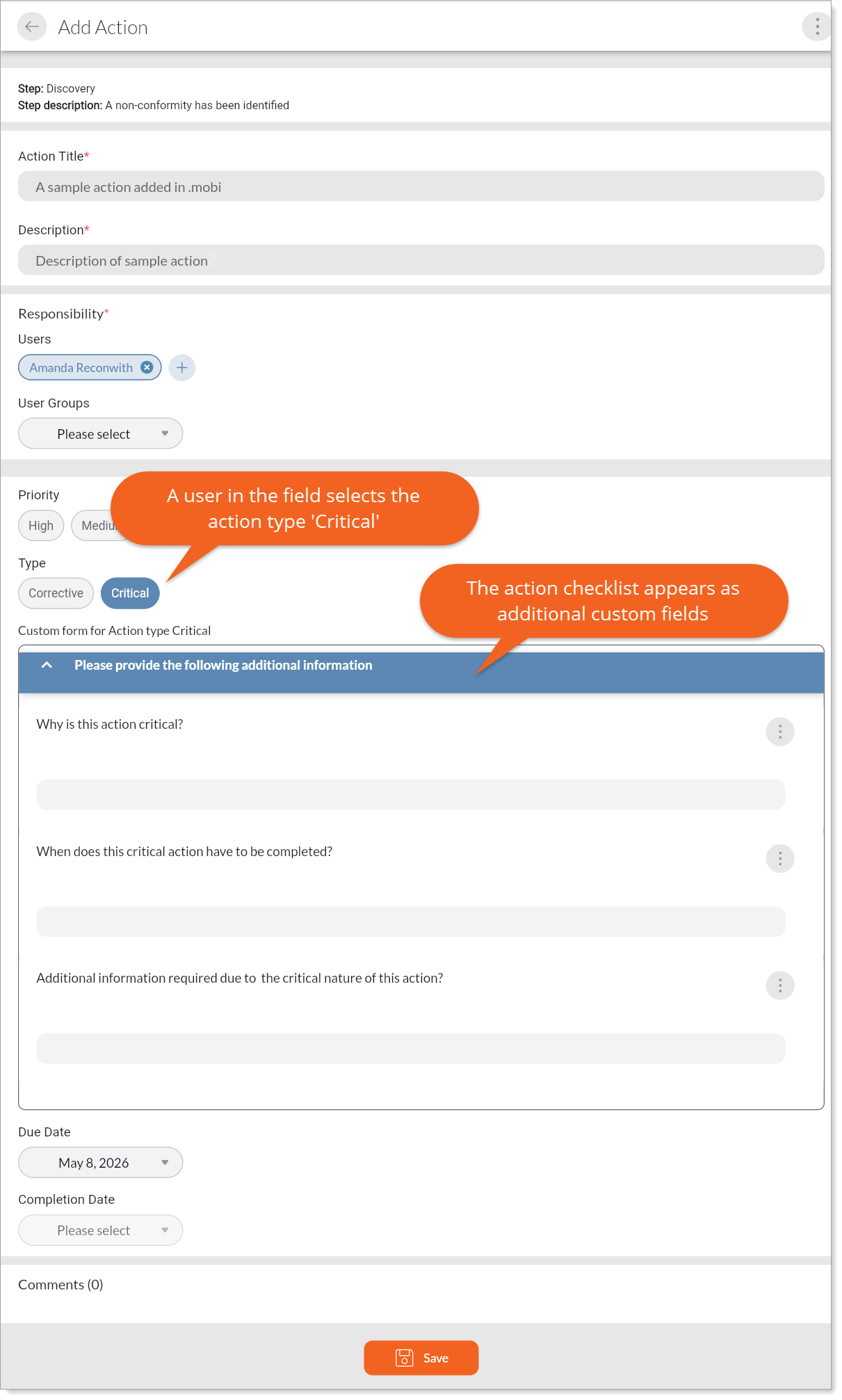
Now, when a field user adds an action and selects the 'Critical' action type, the questions and answer options in the linked action checklist will appear as additional fields in the Actions form.
Associate the action checklist/type with action workflow/workflow steps (optional):
The custom action fields are available to both standard actions and actions that have an associated workflow. If there is an associated action workflow you must add the action type with the custom fields to the step (like any other action type needs to be added to the step to appear).
- Go to ‘Manage Actions - Action Workflows – Steps’.
- Select the action workflow step where the action type triggering the custom form (action checklist) will appear.
- Click ‘Edit’ to open the ‘Edit Action Workflow Step’ page.
- In the ‘Type’ dropdown select ‘Editable’, ‘Mandatory’ or ‘Mandatory before next step.
- Then add the action type you associated with the custom form to the workflow step along with any other action types you want users to choose from in this step.
- Click ‘Save’.